
✓ Installed
You're all set!
No setup needed. Just open a YouTube video and the transcript appears right next to the player. Here's how it works in 5 quick steps.
1. Open any YouTube video
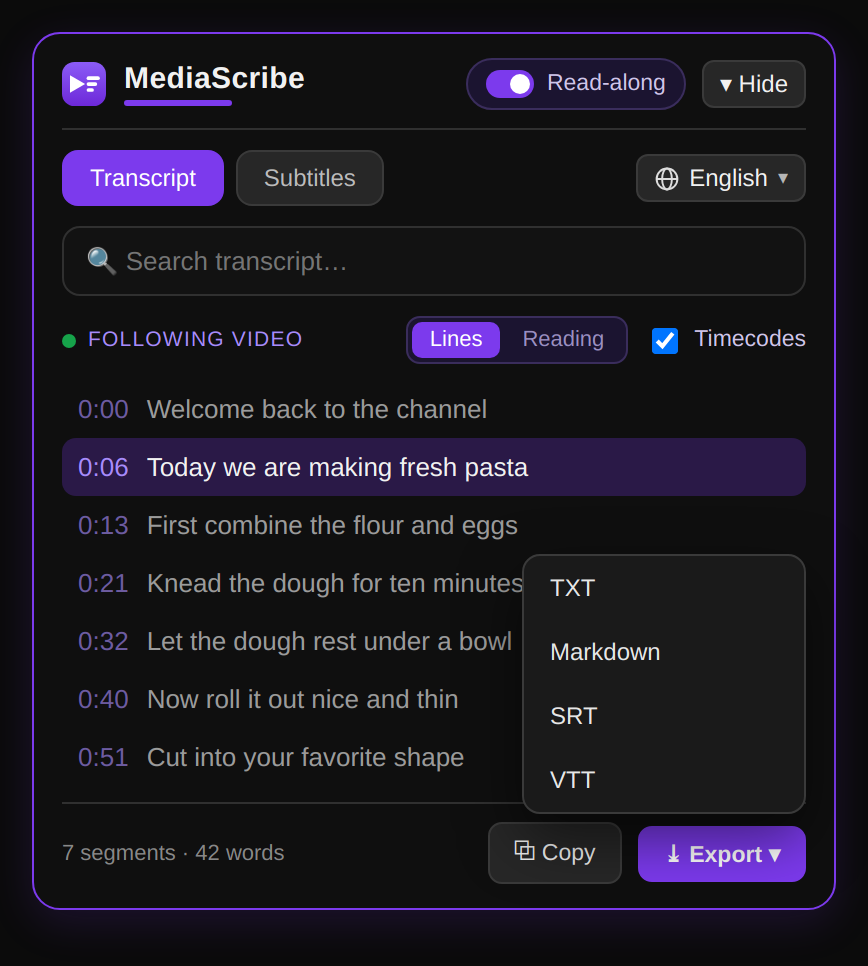
Go to any video that has captions. The transcript panel appears automatically in the sidebar next to the player — no clicks, no setup. If it ever doesn't show up, click the MediaScribe icon in Chrome's toolbar and hit Show transcript panel to bring it up.
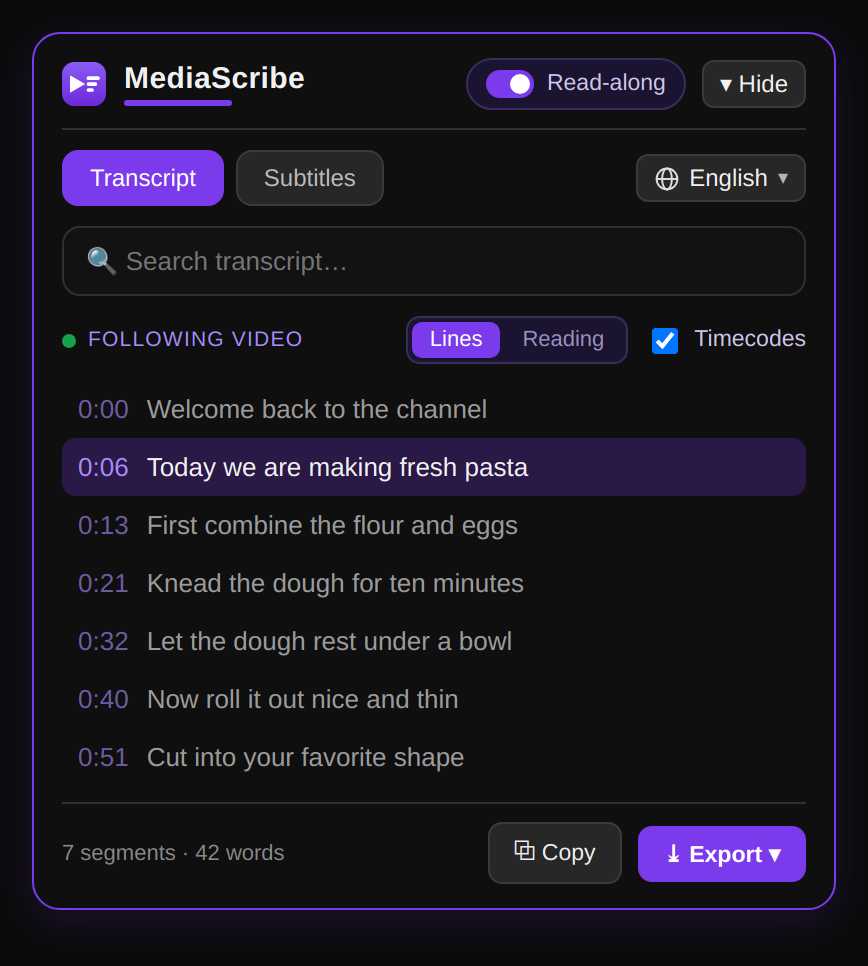
2. Search the transcript
Type any word to filter the lines instantly. Click a timestamp to jump the video straight to that moment.
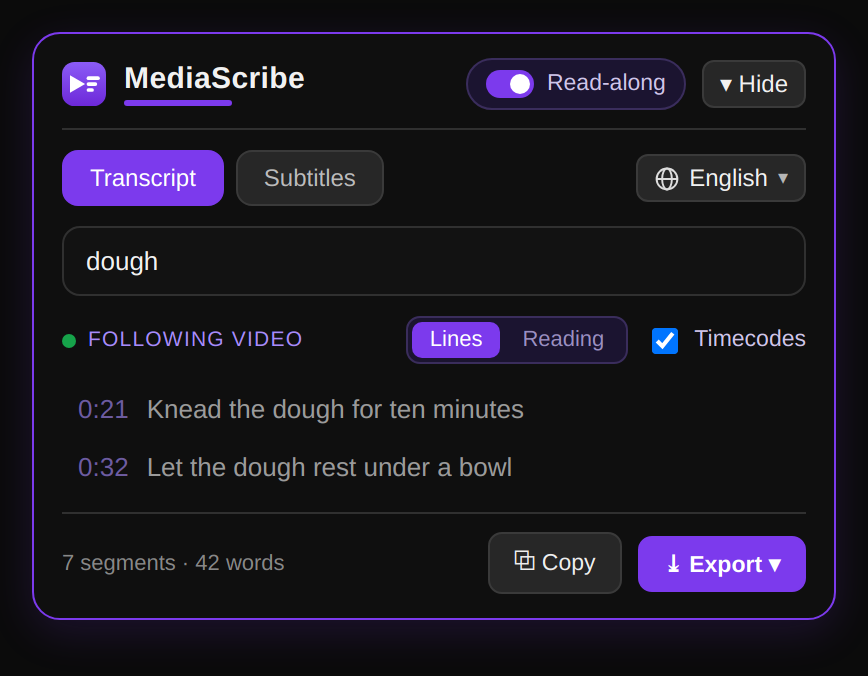
3. Translate to your language
Open the language menu and read the transcript translated into any available language.
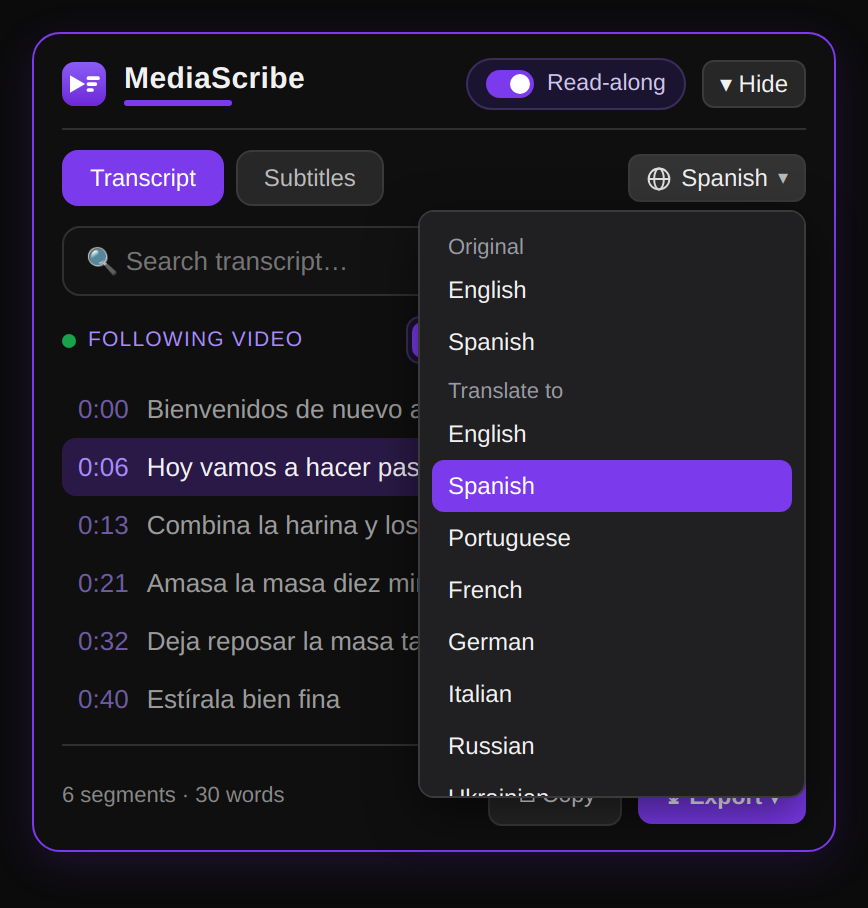
4. Read along with the video
Switch to read-along mode — the current line highlights and follows the video as it plays.
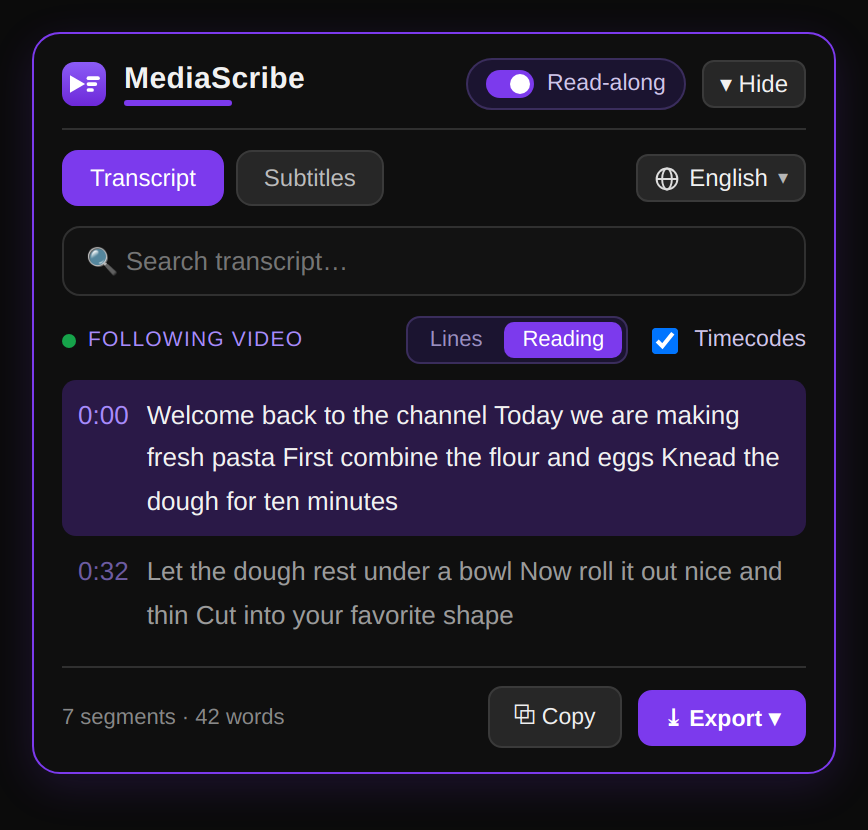
5. Copy or export
Copy the text in one click, or export the transcript to TXT, Markdown, SRT or VTT.
Need more space?
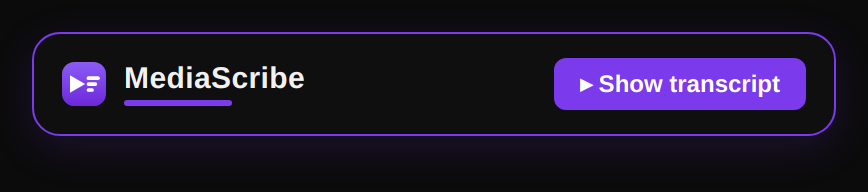
Hide the panel anytime with the Hide button. When it's collapsed, just click Show transcript to bring it back.
💡 Works on videos that have captions (creator-provided or auto-generated). Tip: pin the extension from the puzzle icon in Chrome's toolbar for quick access to settings.
Open YouTube and try it →